How to Add a QR Code to a Poster: A Practical Guide for Events, Marketing, and Research
A practical guide to putting a QR code on a poster — the three real scenarios where it pays off, how to add one in Poster's built-in editor, and the sizing and
Key Takeaways
- •A QR code earns its place on a poster when it replaces a real friction — typing a long URL, remembering a campaign hashtag, or finding a research paper after a conference talk.
- •The three strongest use cases are marketing campaigns, event and donation drives, and academic research posters. Each has a different dominant goal and a different best practice for placement.
- •Size, contrast, and quiet zone matter more than the QR code itself. A poorly placed or too-small code won't scan, no matter how clever the destination.
- •Poster.sh's built-in editor supports QR code insertion on desktop. On mobile the editor runs in light-edit mode, so add the QR code from a laptop or desktop browser.
On This Page
A QR code turns a printed poster into a link. People point a phone at it, and they land on whatever page you want — an event registration form, a donation page, a product catalog, a research paper. That's the whole appeal: no typing, no remembering a URL, just a camera and a tap.
This guide covers the three scenarios where a poster QR code actually pays off, how to add one in Poster's built-in editor, and the placement and sizing rules that decide whether it gets scanned at all.
Why Put a QR Code on a Poster at All
The honest answer: most posters don't need one. A good headline, a clear date, and a short URL are often enough. The QR code earns its place when it replaces a real friction that the poster itself can't remove.
Three kinds of friction come up again and again:
- A URL that's too long or too awkward to type on a phone keyboard.
- A destination that changes — a registration form that moves, a donation page that reopens for each campaign, a research link that sits behind a DOI.
- A reader who is standing up, walking past, or sitting in a conference hall with limited time to pull out a laptop.
Those are the situations that reward a scannable link. Outside of them, a QR code mostly adds visual clutter without delivering much value.
Three Real Use Cases for Poster QR Codes
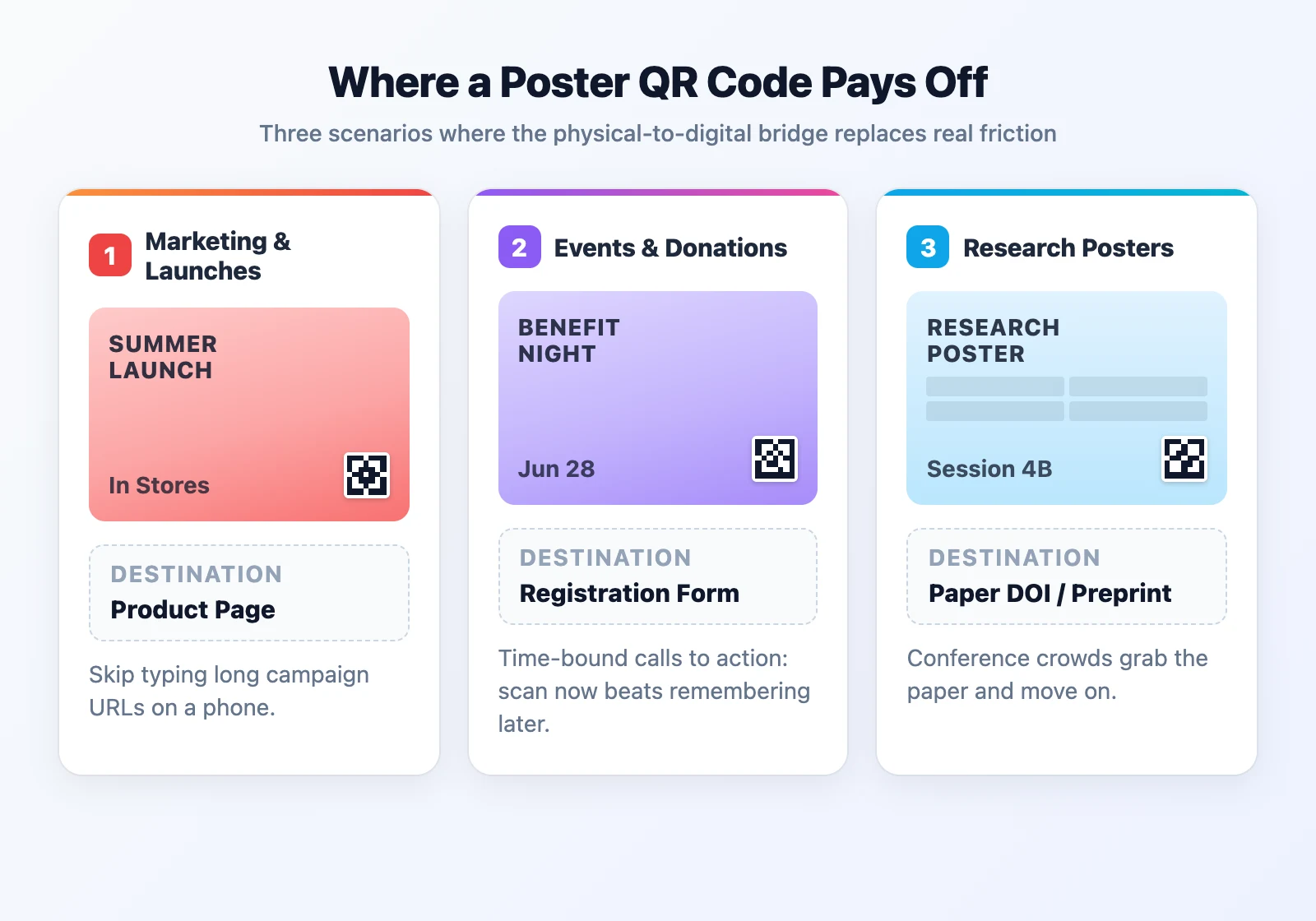
The strongest poster QR codes live in one of three contexts. Each treats the QR code as the connector between a physical artifact and a specific digital action.
Marketing Campaigns and Product Launches
The classic case. A retail poster in a storefront window points to a product page. A launch poster at a trade show points to a waitlist form. A café counter poster points to a loyalty signup.
What makes this work: the destination is a commerce or signup action that's either too long to type or too valuable to lose to friction. A URL like brand.com/products/summer-2026-launch?ref=instore is nobody's idea of a good thing to key in on a phone. A QR code removes that barrier.
What breaks this: pointing the code at the brand's plain home page. If someone has to navigate from the home page to the product anyway, the QR code didn't save them any typing — it just added a middle step.
Events, Activities, and Donations
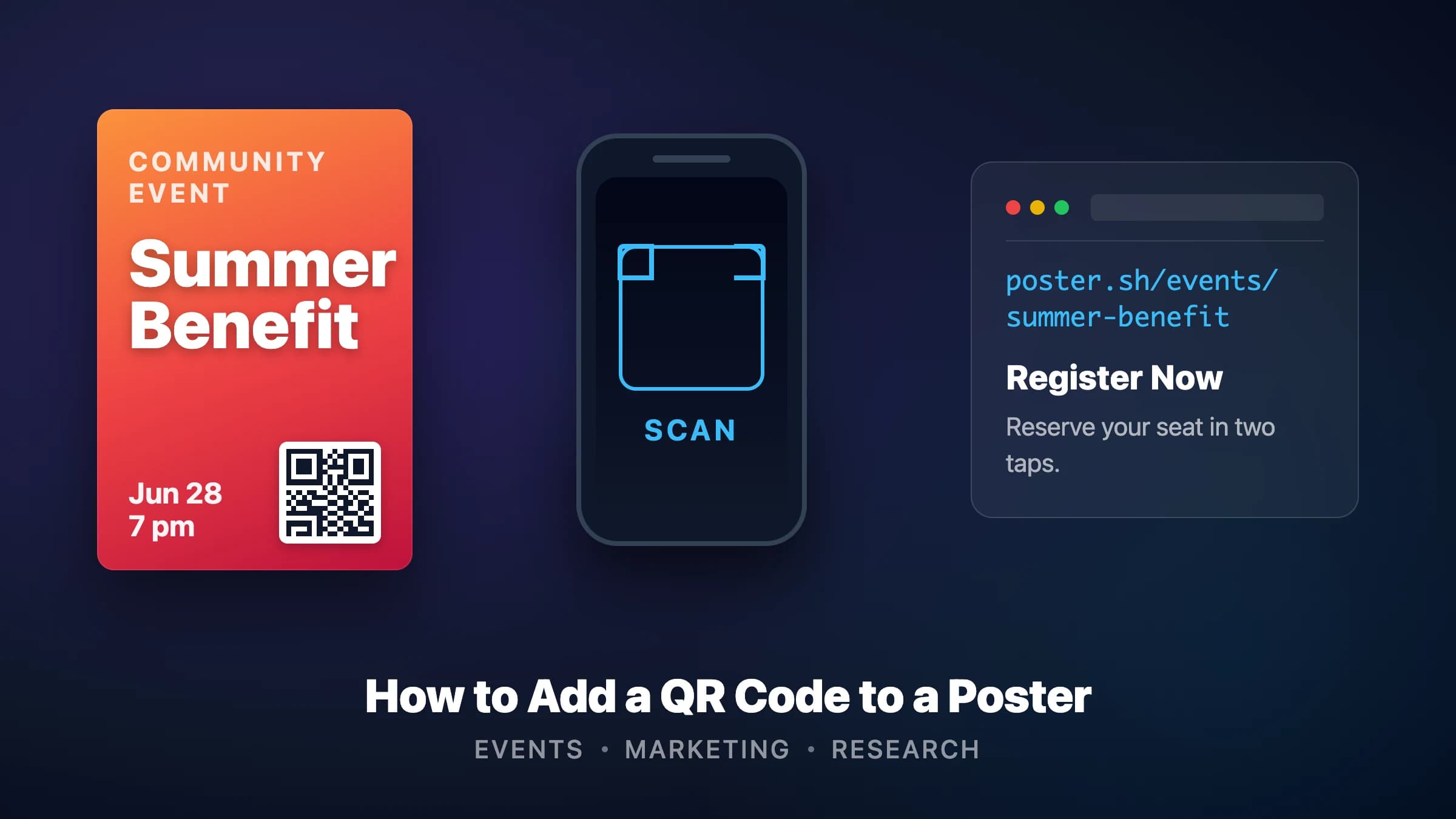
Event posters are the second-strongest case. A concert poster points to a ticket page. A meetup poster points to a signup sheet. A charity poster points to a donation page. A bake sale poster points to a Venmo handle.
The pattern: the poster is promoting a time-bound action (register, attend, donate), and the poster is sitting somewhere physical (a coffee shop wall, a university notice board, a bulletin board at the gym). People see it, are interested, and want to act right now. A QR code makes "right now" possible without asking them to memorize anything.
This is also where the "without watermark, free, no signup" angle of poster.sh's editor matters most. A community fundraiser printing ten copies for a church hall doesn't want to pay a subscription or carry a logo they didn't choose.
Academic and Research Posters
The niche that pays off quietly. A research poster at a conference poster session usually can't fit the full paper, dataset, supplementary methods, and author contact details on a single board. A QR code solves this.
The standard pattern:
- One QR code pointing to the paper DOI or preprint, for people who want to cite or forward it.
- A second QR code, smaller, pointing to the lab website or the author's ORCID, for people who want to follow up on related work.
- Sometimes a third code pointing to a supplementary data page or GitHub repository when the research is computational.
Research posters use QR codes because the audience is often other researchers who are walking the hall with limited time and want to grab the information and keep moving. A scan in thirty seconds is better than a conversation that interrupts their schedule — and the poster author still benefits because their paper lands in a phone they can follow up with later.
This use case is widely documented in university library guides and researcher discussions on r/PhD and academic blogs. It's the reason QR codes on posters never fully faded from academic contexts, even in years when marketing QR codes were less popular.
How to Add a QR Code to a Poster (Step by Step)
Here is the full workflow inside Poster's built-in editor. The editor opens any generated poster on a full canvas and lets you add a QR code alongside text and image uploads.
A note before you start: QR code insertion runs on desktop only. Poster's mobile editor is a light-edit mode that supports text and image uploads but does not include the QR tool. If you're on a phone, generate your poster on the phone if you like — then open it in a desktop browser before adding the QR code.
Step 1: Start With the Right Base Poster
Open the generator on the homepage and describe the poster you want. Pick a style — something with enough breathing room in the composition for a code to sit cleanly. Busy collage styles fight a QR code. Styles with clean corners, soft gradients, or minimal typography give you room to place it.
If you already have a public poster you like, open it from the gallery and click Customize Poster to jump into the editor.
Step 2: Open the Poster in the Editor
From any poster detail page, click Customize Poster. The full canvas editor loads with your poster as the base layer. You'll see a toolbar that includes text, image upload, QR code, and shapes. The QR code button is the one you want.
Step 3: Insert the QR Code
Click the QR code button in the toolbar. A panel opens on the right side where you enter the destination.
- QR content: paste the full URL. Include
https://— codes without a protocol sometimes fail to open cleanly on older phones. - QR color: black on white is the default and the most reliable choice.
- Background color: white is the safest background. Transparent looks cleaner on designed posters but can fail to scan if the poster background has busy patterns underneath.
- QR style: the default square style works on every camera. Decorative QR styles can look nicer but sometimes trip up older scanners.
Click Generate QR Code. A code appears on the canvas as a new element you can move and resize.
Step 4: Place and Size It Properly
This is the step that decides whether the QR code actually gets scanned in the wild. Drag the code to a corner — typically the bottom-right, though any unclutterd corner works. Resize it until it's large enough to scan comfortably from the distance people will actually read the poster from.
Rule of thumb: the QR code should be at least 10% of the poster's shorter side. For a 1080×1350 Instagram poster, that means a QR code around 135 pixels square at minimum. For a printed 24×36 inch poster, that means a code around 2.4 inches square or larger.
Leave a quiet zone around the code. The quiet zone is the empty margin around the QR pattern, and most scanners need it to lock on. A margin equal to about four QR modules (small squares) on each side is the standard. If you shrink the code too tight to a border or overlap it with other design elements, the scan will fail.
Step 5: Test the Scan Before Exporting
Before you export, scan the code with a phone camera. Point the phone at the screen from about the same distance someone would read the poster in real life. If it opens the URL cleanly, you're good. If it hesitates or misreads, increase the size or improve the contrast.
This is the single most important step in the whole process. A QR code that doesn't scan is worse than no QR code at all — it wastes the reader's attention and looks broken.
Step 6: Export as PNG
Click the export button in the toolbar. The editor saves the poster as a PNG file. That's the only export format in the current editor — if you need JPG for a specific workflow, run the PNG through the image converter afterward.
If the poster is destined for print, keep the original PNG at full resolution. If it's destined for social media, the Instagram resize tool handles cropping to the exact dimensions without touching the rest of your design.
Best Practices for Poster QR Codes
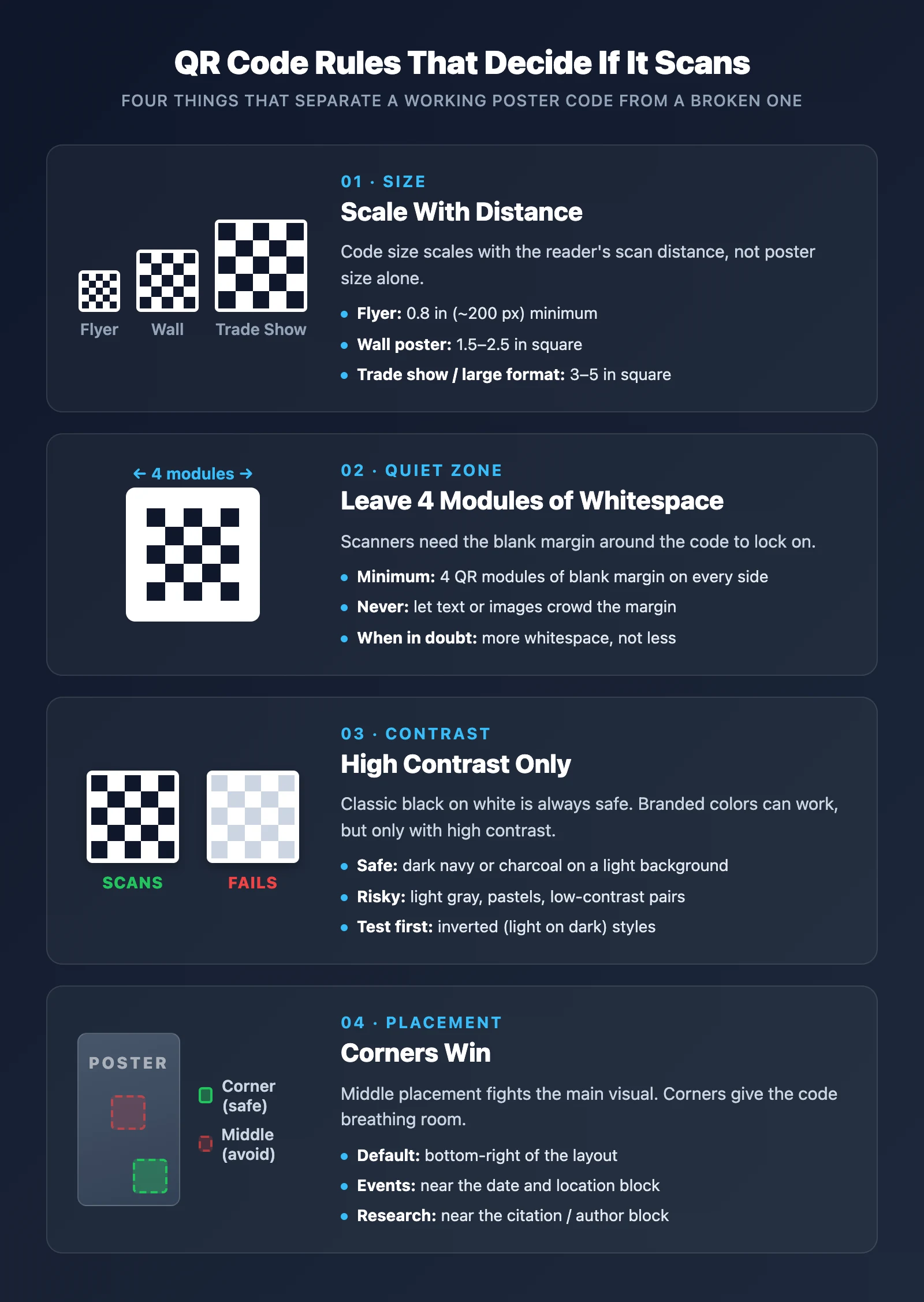
Most scan failures come from three places: the code is too small, the contrast is too weak, or the quiet zone is broken. Here's how to avoid each.
Size and Scan Distance
The code needs to be large enough to scan from the distance people will actually read the poster from. A small reference:
- Hand-held flyer or half-sheet: 0.8 × 0.8 inches minimum (about 200 pixels square for digital).
- Standard wall poster (A2, 18×24, 24×36): 1.5 to 2.5 inches square, depending on how close readers will get.
- Trade show booth or large format: 3 to 5 inches square. Larger posters mean scan distance goes up, and the QR code has to grow with it.
When in doubt, make the code bigger than you think it needs to be. Oversized QR codes scan cleanly from any distance. Undersized ones fail in real conditions even when they look fine on screen.
Contrast Matters More Than Color
Classic black on white always works. Colored QR codes can work, but only if the contrast between foreground and background is high enough. A light gray code on a white background is a common mistake — it looks subtle and elegant on a design mockup, and it fails to scan under real conditions.
If you want a branded look, use a dark foreground (navy, charcoal, deep green) on a light background. Avoid inverted codes (light on dark) unless you've tested them on multiple phones, since some scanners still struggle with them.
The Quiet Zone Is Non-Negotiable
The blank margin around the QR code is what scanners use to find the pattern. If that margin is too small, or if design elements crowd into it, the scan will fail even though the code itself is intact. Leave an empty margin equal to at least four QR modules (the small squares inside the code) on each side. When in doubt, more whitespace is better than less.
Placement Inside the Layout
Corner placement is the default for a reason. Bottom-right, bottom-left, or upper corner all work. Middle placement competes with the main visual and rarely helps.
For event posters, place the QR code near the date and location information so the two things people need — when, where, and how to register — sit together.
For research posters, the convention is bottom-right near the author contact and citation information, so someone reading the abstract can scan it as they move on.
Destination URL Discipline
A QR code is only as good as where it leads. Keep two rules in mind:
- Point to a page that loads fast on mobile. A slow-loading destination page kills the entire value of the scan.
- Use a URL that stays alive. If the destination might change or disappear (a temporary landing page, a workshop form that'll be taken down), use a URL shortener or a redirector you control, so the QR code can keep pointing at the right place even after the underlying URL moves.
QR Codes on Research and Academic Posters
This case is worth its own section because the conventions are different from marketing posters.
The audience at a research conference is mostly other researchers, often walking between sessions on tight schedules. They don't have time to read a full poster, and they don't want to keep a stack of physical handouts. A QR code lets them grab the information they need and move on.
Standard practice on research posters:
- Main QR code → paper or preprint. This is the one that matters most. Link to the published paper if it's out, the preprint (arXiv, bioRxiv, SSRN) if it isn't, or a project landing page with a downloadable PDF. Place it near the citation/author block at the bottom-right.
- Secondary QR code → supplementary material. If the research has a GitHub repository, an interactive notebook, a dataset, or a lab website, a small secondary code points to it. Place it near whatever section the supplementary content supports — methods or results usually.
- Author contact QR code (optional). Some researchers include a third small code pointing to their ORCID or personal website for follow-up communication. This is optional and more common in fields with strong networking norms.
A few things research posters get right that marketing posters often miss:
- The QR codes are small, neat, and consistently placed. They don't dominate the poster — the research does.
- The quiet zone around the code is preserved. Academic posters tend to use clean layouts with plenty of whitespace, so this happens naturally.
- The destination URL is a stable academic link (DOI, arXiv ID, ORCID) rather than a marketing redirect. Stability matters when the poster could be photographed and shared for years after the original session.
If you're printing an academic poster, follow these patterns rather than adopting a marketing-poster approach. Different audience, different conventions.
Common Mistakes to Avoid
- Making the QR code too small. The most common failure. A code that fits design-wise at 50 pixels square will not scan on a wall poster from three feet away.
- Breaking the quiet zone. Crowding the code with text, images, or borders. The blank margin around the QR pattern is part of the code, not decoration around it.
- Low-contrast color choices. Light gray codes. Pastel codes. Codes with an image watermark inside them. All of these look clever in a design review and fail to scan in the real world.
- Pointing the code at a slow page. If the destination takes five seconds to load on mobile, the scan value is gone. Test the destination URL on a real phone before you ship the poster.
- Using a URL that will move. Codes on printed posters live for months or years. If the destination URL might change, use a short-link or redirector you control so you can keep the code alive without reprinting.
- Not testing the scan. Skipping the phone test before export. A QR code that doesn't scan is worse than no QR code — it makes the whole poster look broken.
Bottom Line
QR codes earn their place on posters when they remove a real bottleneck: typing, remembering, or revisiting a URL later. That still holds as of April 14, 2026, but it breaks fast when the destination page is slow, the code is undersized for the real viewing distance, or the poster is already dense enough that one more block hurts scanning. Test the exact print size or export before you commit.
Frequently Asked Questions
- How big does a QR code need to be on a printed poster?
- The rule of thumb is about 10% of the poster's shorter side, but scan distance is what actually matters. For a poster people read from arm's length, 0.8 to 1 inch square is a floor. For a wall poster people read from several feet away, 1.5 to 3 inches square is more reliable. Larger is always safer than smaller.
- Can I add a QR code to a poster on my phone?
- Not in Poster's current editor. The mobile editor runs in light-edit mode — it supports text edits and image uploads but not QR code insertion. Open the poster on a desktop browser to add the QR code, then export.
- What URL should a poster QR code point to?
- A URL that loads quickly on mobile and stays alive for the life of the poster. For marketing posters, a specific product or campaign page. For events, a registration form or ticket page. For research posters, a DOI or preprint link. Avoid pointing codes at home pages that require the reader to navigate further — that defeats the purpose of scanning.
- Do colored or stylized QR codes actually work?
- Sometimes. A colored QR code works if the contrast between foreground and background is high enough and the QR pattern itself is intact. Decorative styles (rounded corners, custom center logos) sometimes trip up older scanners. If you're designing for a mass audience, use classic black-on-white and save the branded styling for lower-stakes materials. If you go decorative, test on multiple phones before you print.
- Do I need a paid QR code generator?
- No. Poster's built-in editor generates the QR code as part of the canvas element on desktop. You enter the URL, pick a color and background, and place it on the poster. No subscription, no watermark, and no separate QR code account to manage.
Open a Poster in the Editor
Generate an AI poster, open it in the built-in editor, and add your QR code on desktop. Mobile supports light edits only.
Open the Poster Editor