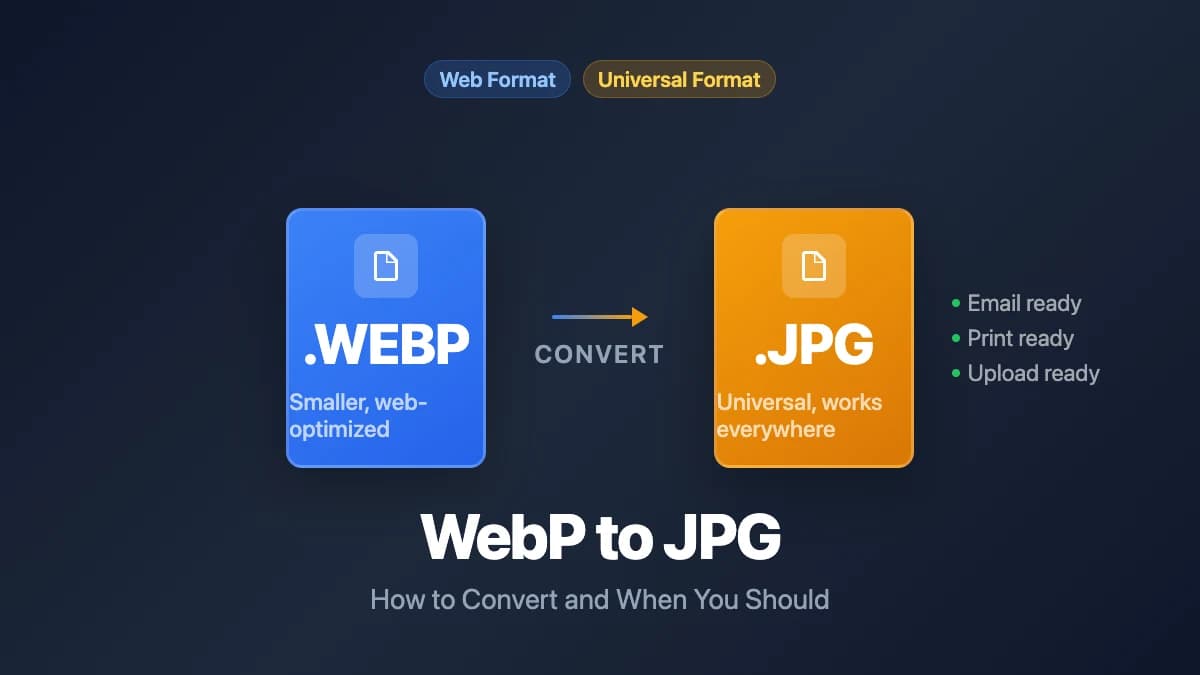
WebP to JPG: How to Convert and When You Should
Learn how to convert WebP images to JPG for universal compatibility. Covers why WebP causes problems, when JPG is better, and how to convert without installs.
Key Takeaways
- •
WebP is Google's image format, designed for the web. It produces files 25–34% smaller than JPG at similar quality.
- •
All modern browsers support WebP, but many desktop apps, email clients, print services, and upload forms still expect JPG.
- •
Browser-based converters handle the conversion locally on your device — no file uploads, no software installs.
- •
JPG remains the safest format for sharing, printing, and uploading outside of web browsers.
On This Page
You saved an image from a website and it downloaded as a .webp file. Now you need to attach it to an email, upload it to a form that only accepts JPG, or send it to a print shop — and the file won't work. WebP is everywhere on the web because it makes pages load faster, but the rest of the world hasn't fully caught up.
This guide explains what WebP is, where it falls short, and how to convert your files to JPG in seconds without installing any software.
What Is WebP and Why Is It Everywhere?
WebP is an image format developed by Google and first released in 2010. It was built specifically to make web pages load faster by reducing image file sizes without a visible drop in quality.
The numbers back this up. Google's own compression study found that WebP lossy images are 25–34% smaller than comparable JPEG images at equivalent visual quality. For websites serving thousands of images, that difference translates directly into faster load times and lower bandwidth costs.
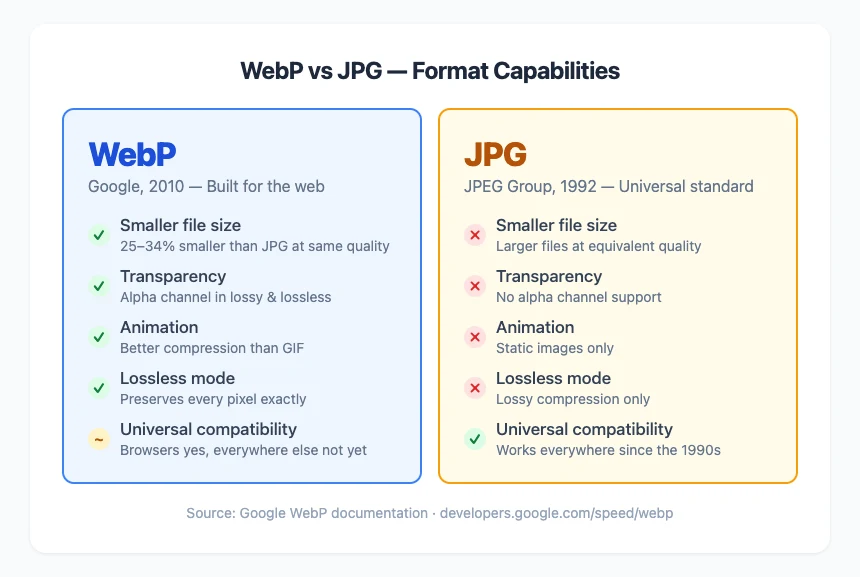
WebP also has features that JPG simply doesn't:
- Transparency — WebP supports alpha channels in both lossy and lossless modes. JPG cannot do transparent backgrounds at all.
- Animation — WebP can store animated sequences, like GIF but with dramatically better compression and color depth.
- Lossless compression — WebP offers a lossless mode that preserves every pixel exactly, something JPG's lossy-only design can't match.
These advantages explain why WebP has taken over the web. Content delivery networks, website builders, and CMS platforms routinely convert uploaded images to WebP automatically. When you right-click and save an image from most modern websites, there's a good chance you'll get a .webp file.
Where WebP Falls Short
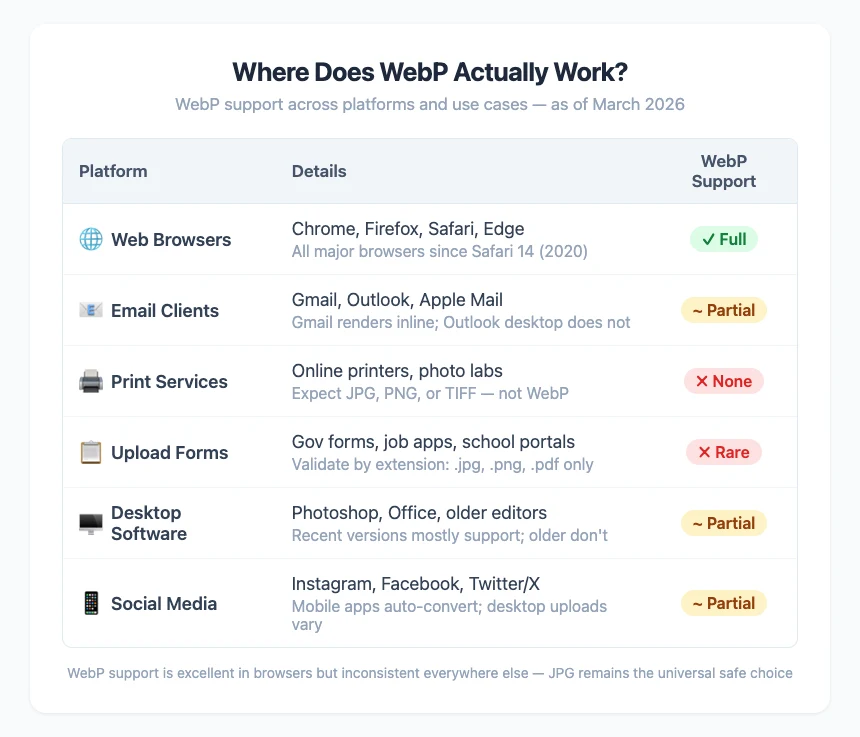
WebP is excellent for its intended purpose — serving images inside web browsers. The problems start when you try to use a WebP file anywhere else.
Most email clients display JPG and PNG inline without issues. WebP support is inconsistent: Gmail handles it, but Outlook on desktop and many corporate email systems don't render WebP images inline. Your recipient sees a generic attachment icon instead of the image.
Print Services
Print shops and online printing services universally accept JPG, PNG, and TIFF. WebP is not a standard print format. If you try to upload a WebP file to a printing service, the upload will likely fail or the service will reject it outright.
Desktop Software
Image editors, presentation tools, and document processors have varying WebP support. Adobe Photoshop added WebP support relatively recently. Older versions of common software — and plenty of specialized tools — still can't open WebP files.
Upload Forms and Web Apps
Many upload forms validate file types by extension. Government forms, job applications, insurance claims, school portals — these systems often accept only .jpg, .png, or .pdf. A .webp file gets rejected even though the image content is perfectly valid.
Social Media (from Desktop)
When uploading from mobile apps, most social platforms handle format conversion automatically. But desktop uploads to some platforms and third-party scheduling tools may not accept WebP, or may produce unexpected results with transparency.
The Core Issue
JPG has been universally supported since the early 1990s. Every device, every operating system, every app, every service knows how to handle it. WebP is supported in web browsers, but "web browser support" and "universal support" are not the same thing.
How to Convert WebP to JPG
There are three practical approaches.
Option 1: Use a Browser-Based Converter (Fastest)
A browser-based tool converts the file locally on your device. Nothing gets uploaded to a server.
Here's how it works with poster.sh's WebP to JPG converter:
- Open the tool — go to poster.sh/tools/webp-to-jpg in any browser
- Drop your file — drag a
.webpfile into the upload area, or click to browse - Adjust quality — the default is 92%, which balances sharp output with reasonable file size. Slide lower for smaller files, higher for maximum detail
- Click Convert — the tool processes the file using your browser's built-in Canvas API
- Download — save the resulting
.jpgfile
The tool shows you both the original WebP file size and the converted JPG size, along with the image dimensions. Your file never leaves your device during the entire process.
One thing to know: if your WebP file has a transparent background, the converter fills it with white. JPG doesn't support transparency, so this is the expected behavior. If you need to preserve transparency, convert to PNG instead using an image converter.
Option 2: Use macOS Preview or Windows Paint
Both operating systems have built-in tools that can handle the conversion:
macOS Preview:
- Open the
.webpfile in Preview (it may open by default) - Go to File → Export
- Choose JPEG from the format dropdown
- Adjust quality and click Save
Windows (Paint or Photos):
- Open the
.webpfile in Paint (right-click → Open with → Paint) - Go to File → Save as → JPEG picture
- Choose your save location
This works fine for occasional one-off conversions. For multiple files, a browser-based tool is faster since you don't need to open each file individually.
Option 3: Batch Conversion with Command-Line Tools
If you convert WebP files regularly — say, for a content workflow — command-line tools like cwebp/dwebp (Google's own WebP utilities) or ImageMagick handle batch conversion efficiently:
# Using dwebp (Google's WebP tool)
dwebp input.webp -o output.png
# Then convert PNG to JPG with another tool

# Using ImageMagick
magick input.webp output.jpg

# Batch convert all WebP files in a folder
for f in *.webp; do magick "$f" "${f%.webp}.jpg"; done
This approach is overkill for most people but useful for developers and content teams processing dozens or hundreds of files.
WebP vs JPG: When Each Format Wins
Neither format is better in every situation. The right choice depends on where the image will be used.
| Scenario | Better format | Why |
|---|---|---|
| Serving images on a website | WebP | 25–34% smaller files, faster page loads |
| Email attachments | JPG | Universal display across all email clients |
| Print orders | JPG | Print services expect JPG, PNG, or TIFF |
| Upload forms (government, school, etc.) | JPG | Forms validate by extension; .jpg always works |
| Social media from mobile | Either | Mobile apps handle conversion automatically |
| Social media from desktop | JPG | Avoids format rejection from scheduling tools |
| Archiving original photos | JPG or PNG | Broader long-term software support |
| Images with transparency | WebP or PNG | JPG doesn't support transparency |
| Animated images | WebP or GIF | JPG doesn't support animation |
The practical rule: if the image stays on the web, keep it as WebP. If it needs to go anywhere else — email, print, upload forms, desktop software — convert to JPG first.
Does Converting WebP to JPG Lose Quality?
Yes, there is some quality loss because JPG is a lossy format. Every time you save a JPG, the compression algorithm discards some image data to reduce file size.
How much quality you lose depends on the quality setting you choose:
- 90–100%: Virtually indistinguishable from the original. File sizes will be larger than the WebP source.
- 80–90%: Slight compression artifacts may appear in gradients and fine details, but they're invisible in most normal viewing conditions. Good balance of quality and size.
- 60–80%: Noticeable quality reduction in detailed images. Acceptable for thumbnails or low-priority use.
- Below 60%: Visible artifacts. Only useful when file size is the top priority.
The default 92% setting in poster.sh's converter is a deliberate choice: it preserves detail that matters while keeping files reasonable.
One important note: the original WebP file on your device stays unchanged. Conversion creates a new file — you're not destroying the source.
Why Websites Use WebP Instead of JPG
If JPG works everywhere, why did the web switch to WebP? Performance.
A 2010-era website might serve images as JPG or PNG without much thought. A modern website competes on page speed. Google uses Core Web Vitals as a ranking signal, and image size is one of the biggest factors in page load time. Serving WebP instead of JPG can shave hundreds of kilobytes per page — and for image-heavy sites, that adds up fast.
Most modern web infrastructure handles the conversion automatically. CDNs like Cloudflare can convert images to WebP on the fly. CMS platforms like WordPress generate WebP versions of uploaded images. Website builders default to WebP delivery.
The result: when you browse the web, you're viewing WebP images constantly — you just don't notice because your browser handles the format transparently. It's only when you save those images that the format mismatch becomes your problem.
Bottom Line
Convert WebP to JPG when compatibility is the bottleneck and the image no longer needs WebP's size or transparency advantages. That remains the practical call on April 14, 2026, but it stops being the right move when the file needs alpha transparency, the smallest possible web payload, or repeated editing from the highest-quality source.
Frequently Asked Questions
- Why do images download as WebP instead of JPG?
Websites serve WebP because it's smaller and loads faster. When you right-click and save an image, your browser saves it in whatever format the website delivered — which is increasingly WebP. Some browsers let you change the save format in the save dialog, but the most reliable approach is to save the file and convert it afterward.
- Can I just rename .webp to .jpg?
No. Renaming the file extension doesn't change the image data inside. The file will still contain WebP-encoded data, and most software will either refuse to open it or show an error. You need an actual conversion that re-encodes the image as JPG.
- Is WebP better quality than JPG?
At the same file size, WebP generally looks better because its compression algorithm is more efficient. At the same visual quality, WebP files are 25–34% smaller. But "better" depends on your use case — if you need an image that works everywhere, JPG's universal compatibility matters more than WebP's compression advantage.
- Will WebP replace JPG?
WebP has already replaced JPG on the web for most purposes. But outside of web browsers, JPG remains the universal standard. Until every email client, print service, upload form, and desktop application supports WebP natively, JPG isn't going away. The two formats will likely coexist for years.
- Does WebP support transparency?
Yes. WebP supports transparency (alpha channels) in both lossy and lossless modes. This is one of its advantages over JPG, which doesn't support transparency at all. When converting a transparent WebP to JPG, the transparent areas get filled with a solid color (typically white).
Convert WebP to JPG Instantly
Drop your WebP file into our free browser-based converter. No uploads to any server — your file stays on your device the entire time.
Open WebP to JPG Converter