How to Resize Images for Instagram: Complete Size Guide
Every Instagram image size in one place — feed posts, Stories, Reels, and profile pictures. Learn how to resize images for each format without cropping issues.
Key Takeaways
- •Instagram feed posts work best at 1080×1080 (square) or 1080×1350 (portrait). Portrait takes up more screen space in the feed.
- •Stories and Reels both use 1080×1920 (9:16 vertical).
- •Upload images at 1080 pixels wide minimum. Instagram compresses everything, but higher-resolution uploads look better after compression.
- •Use a resizer with preset dimensions to avoid guessing — wrong sizes lead to unexpected cropping.
On This Page
You have an image. Instagram wants a specific size. If the dimensions don't match, Instagram will crop it — and the crop might cut off something important. This guide covers every Instagram image size you need to know and how to resize your images to match.
Every Instagram Image Size You Need
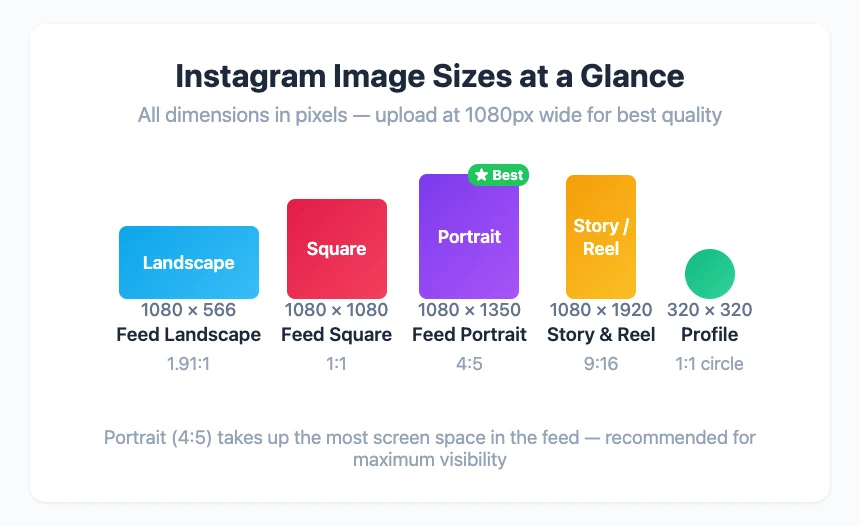
Here are the current Instagram image dimensions, organized by where the image appears.
Feed Posts
Feed posts support three aspect ratios:
| Format | Dimensions | Aspect Ratio | Best for |
|---|---|---|---|
| Square | 1080 × 1080 | 1:1 | Product shots, quotes, single images |
| Portrait | 1080 × 1350 | 4:5 | Photos, posters, infographics — classic portrait size |
| Tall Portrait | 1080 × 1440 | 3:4 | Maximum feed height — takes up the most screen space |
| Landscape | 1080 × 566 | 1.91:1 | Panoramic shots, banners — takes up the least feed space |
Portrait is the strongest choice for feed visibility. Instagram now supports aspect ratios up to 3:4 (1080×1440), which fills even more vertical screen space than the older 4:5 (1080×1350) limit. The taller the image, the more of the viewer's screen your post occupies as they scroll. The official Help Center confirms that feed photos support aspect ratios between 1.91:1 and 3:4.
Instagram accepts images between 320 and 1080 pixels wide. If you upload something wider than 1080px, Instagram scales it down. If you upload something narrower than 320px, Instagram scales it up — and the result looks blurry.
Stories
- Dimensions: 1080 × 1920
- Aspect ratio: 9:16 (full vertical screen)
Stories fill the entire phone screen. If your image isn't 9:16, Instagram will either crop it or add bars. For the best result, resize to exactly 1080×1920 before uploading.
Keep in mind that Instagram overlays UI elements on Stories — the username at the top and the reply bar at the bottom. Avoid placing critical content in the top ~14% and bottom ~14% of the image.
Reels
- Dimensions: 1080 × 1920
- Aspect ratio: 9:16
Same dimensions as Stories. Reel cover images also display at 1080×1920 in the Reels tab, but get cropped to 1080×1350 (4:5) when shown in the main profile grid.
If your Reel cover matters for your grid aesthetic, design it so the key content sits within the center 1080×1350 area.
Profile Picture
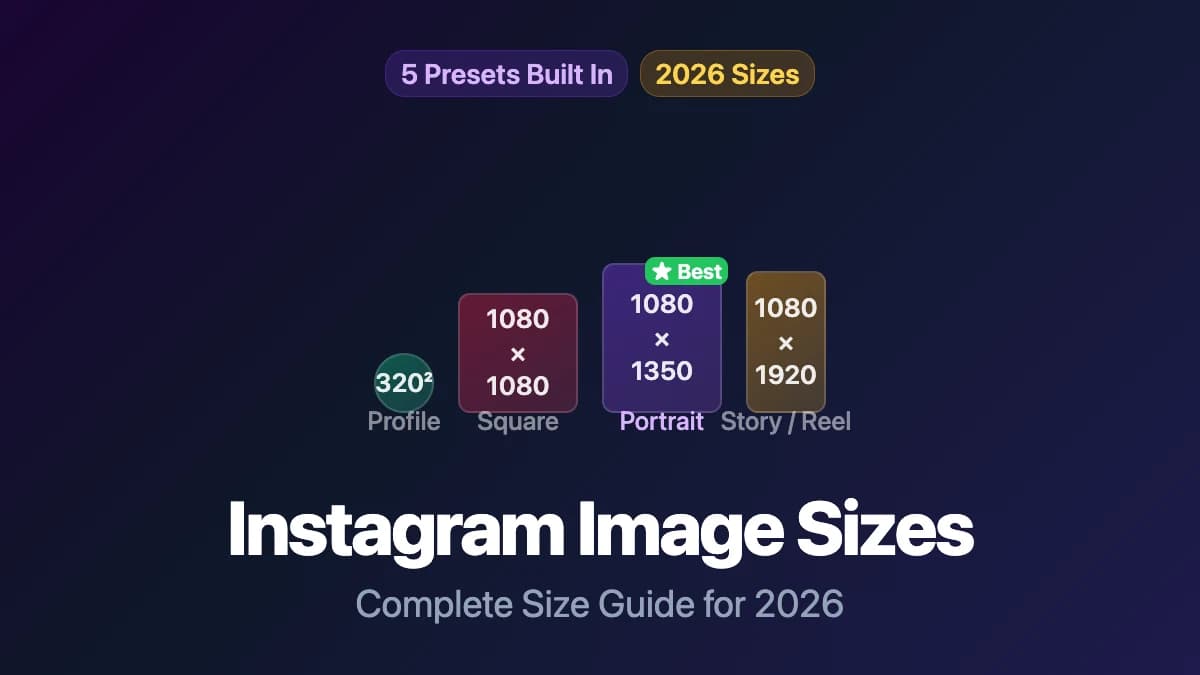
- Displayed at: 320 × 320 pixels (circle crop)
- Recommended upload: At least 320×320
Instagram crops profile pictures into a circle. Upload a square image and make sure the important content (face, logo) is centered with padding around the edges — anything near the corners gets clipped.
Carousel Posts
Carousel posts (multi-image swipe posts) follow the same size rules as regular feed posts. All images in a carousel are locked to the same aspect ratio — the first image you upload sets the ratio for the rest.
If your first image is 1080×1350 (portrait), every subsequent image in that carousel will be cropped to 4:5. Plan your carousel images together.
What Happens When Your Image Is the Wrong Size
Instagram doesn't reject wrong-sized images. Instead, it silently adjusts them:
- Too wide or too tall: Instagram crops to the nearest supported ratio. You don't get to choose where it crops — it centers the crop.
- Too small (under 320px wide): Instagram upscales it, which makes it blurry.
- Too large (over 1080px wide): Instagram scales it down to 1080px wide. This is fine — it just means you don't need to upload massive files.
- Wrong aspect ratio: The auto-crop in the upload flow lets you adjust, but what you see in the editor isn't always exactly what appears in the feed. Resizing to the correct dimensions before upload eliminates this guesswork.
The bottom line: resize before you upload, and you control the result.
How to Resize Images for Instagram
Method 1: Use the Instagram Resizer (Fastest)
poster.sh's Instagram resizer has all five Instagram sizes built in as presets.
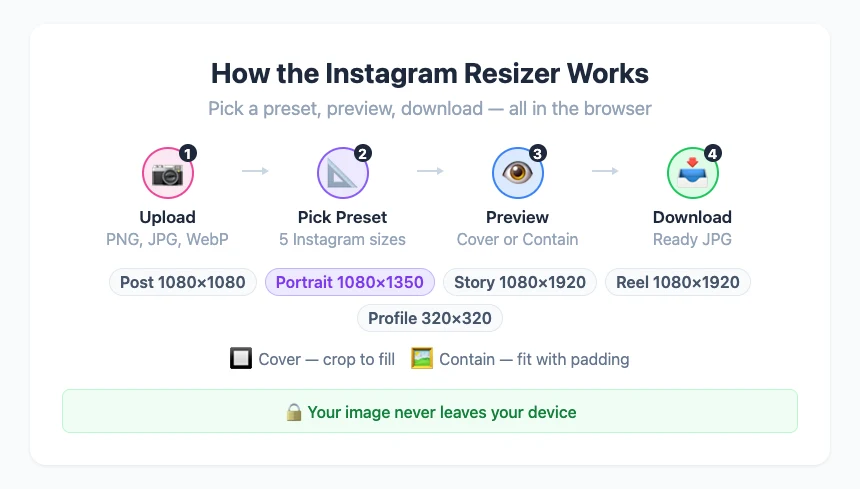
- Open the tool at poster.sh/tools/resize-for-instagram
- Upload your image — accepts PNG, JPG, or WebP
- Pick a preset:
- Post (1080×1080)
- Post Portrait (1080×1350)
- Story (1080×1920)
- Reel (1080×1920)
- Profile Picture (320×320)
- Choose a fit mode:
- Cover — fills the frame by cropping edges (no empty space)
- Contain — fits the whole image inside the frame with colored padding
- Preview the result before committing
- Download the resized JPG
If you use "contain" mode, you can pick the background color for the padding — useful when you want your brand color instead of white bars.
Everything runs in your browser. Your image never gets uploaded to a server.
Method 2: Photoshop or Similar
- Open your image
- Go to Image → Canvas Size (or Image → Image Size)
- Set dimensions to the target size (e.g., 1080×1350)
- Choose how to anchor the content (center, top, etc.)
- Export as JPG at 80-90% quality
This gives you pixel-level control but takes longer and requires paid software.
Method 3: Mobile — Instagram's Built-In Crop
Instagram's upload flow includes a basic crop tool. Pinch to zoom, drag to position. This works in a pinch, but:
- You can't see exactly how the final post will look until after you post
- You can't add colored padding
- You can't export the resized image for use elsewhere
If Instagram is the only destination and precision doesn't matter, the built-in crop is fine. For anything else, resize first.
Tips for Better Instagram Images
Upload at 1080px wide, always
Even though Instagram accepts smaller images, 1080px is the display width on high-resolution screens. Uploading at exactly 1080px wide means Instagram doesn't need to scale your image — what you upload is what viewers see (minus compression).
Save as JPG, not PNG
Instagram converts everything to JPG internally. If you upload a PNG, Instagram's compression pass may be more aggressive than if you upload a well-optimized JPG. Save as JPG at 85-92% quality for the best balance of file size and visual quality.
Watch the safe zones on Stories and Reels
The top and bottom of 9:16 content get partially covered by Instagram's UI — username, music sticker, reply bar. Keep text and important visuals in the middle 72% of the image vertically.
Design carousel images at the same ratio
Since all carousel slides lock to the first image's aspect ratio, decide your ratio before you start designing. If you're mixing photos and text slides, 1080×1350 gives you the most space for both.
Resize for other platforms too
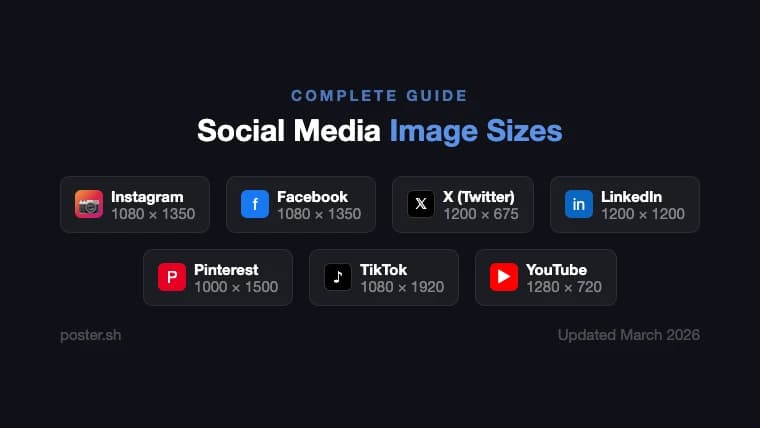
If you're posting the same content across multiple platforms, each has different size requirements. poster.sh's social media resizer covers sizes for multiple platforms beyond just Instagram, and the social media poster gallery shows examples designed for social sharing.
Bottom Line
The safest working rule as of April 14, 2026 is still to resize specifically for Instagram instead of trusting a generic export. That rule breaks when Instagram changes feed ratios again, when your content has text too close to Story or Reel UI overlays, or when the same asset has to serve multiple platforms with different crops. Re-check Instagram's official specs before large campaigns.
Frequently Asked Questions
- What is the best image size for Instagram posts?
- 1080×1440 (3:4 portrait) for maximum feed visibility — Instagram expanded the portrait limit from 4:5 to 3:4. It takes up more vertical screen space than square (1080×1080) or landscape (1080×566), which means more eyeball time as people scroll. If your resizing tool doesn't have a 3:4 preset yet, 1080×1350 (4:5) is still a strong choice.
- Does Instagram reduce image quality?
- Yes. Instagram compresses all uploaded images. You can minimize the visible quality loss by uploading at exactly 1080 pixels wide and saving as JPG at 85-92% quality before uploading. This gives Instagram less reason to aggressively re-compress.
- Can I post full-size photos on Instagram without cropping?
- Yes — if the photo's aspect ratio falls between 1.91:1 (landscape) and 3:4 (portrait). Photos wider than 1.91:1 or taller than 3:4 will be cropped. If your photo falls outside these bounds, use a resizer with "contain" mode to fit the whole image inside a supported ratio with colored padding.
- What size are Instagram Story images?
- 1080×1920 pixels (9:16 aspect ratio). This fills the full phone screen vertically. If your image isn't this exact size, Instagram will crop or letterbox it.
- Why does my Instagram image look blurry?
- Most likely because the upload was too small (under 1080px wide) and Instagram upscaled it, or because the original was already heavily compressed. Upload images at 1080px wide and avoid re-saving JPGs multiple times before uploading.
Resize for Instagram in Seconds
Pick a preset, drop your image, and download the perfectly sized version. No app install, no account — runs in your browser.
Open Instagram Resizer