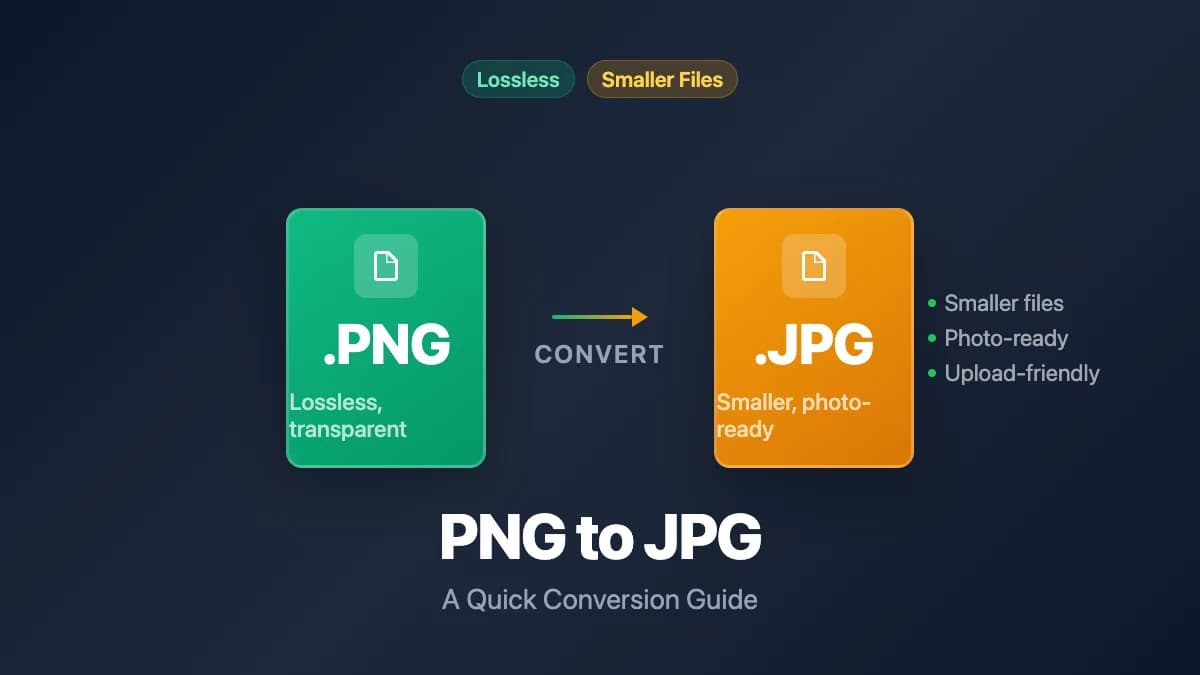
PNG to JPG: A Quick Conversion Guide
Convert PNG to JPG to reduce file size for photos and uploads. Learn when each format works best, and how to convert instantly without software.
Key Takeaways
- •PNG uses lossless compression and supports transparency. JPG uses lossy compression and produces much smaller files for photographs.
- •Converting PNG to JPG makes sense for photos and images where transparency isn't needed and file size matters.
- •Keep your originals as PNG if the image has text, sharp edges, logos, or transparent backgrounds.
- •Browser-based converters handle the conversion locally — no upload to any server required.
On This Page
PNG files are lossless and pixel-perfect — but they're also large. If you're trying to upload a photo, attach an image to an email, or meet a file size limit, converting to JPG usually cuts the file size dramatically. Here's how to do it, what you lose in the process, and when PNG is still the better choice.
PNG vs JPG: What's Actually Different?
These two formats solve different problems. Understanding the difference helps you decide when to convert and when to keep your PNG.
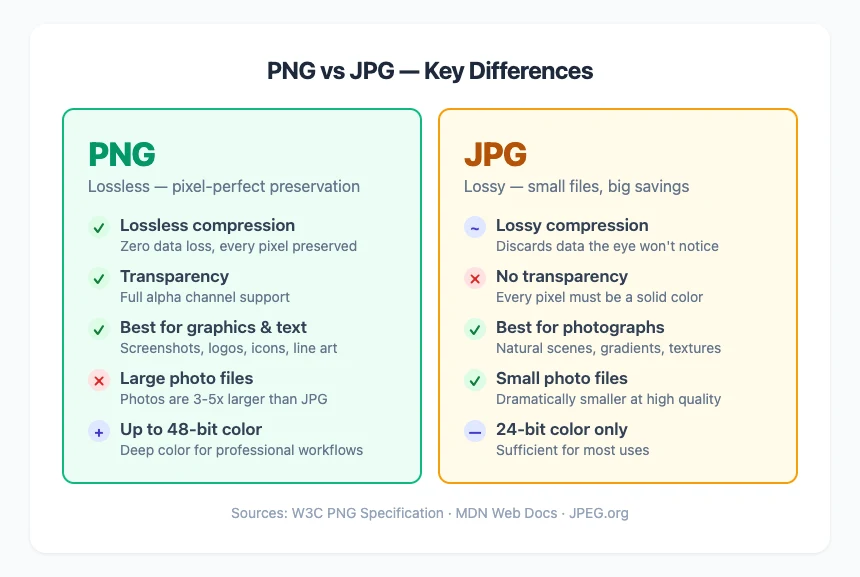
Here's what each difference means in practice.
How They Compress
PNG uses lossless compression — it reduces file size without discarding any image data. Every pixel in the decompressed image is identical to the original. This is the same principle behind ZIP files.
JPG uses lossy compression — it permanently removes image data that the human eye is unlikely to notice. The result is a much smaller file, but one that can never be restored to its original quality. Each time you re-save a JPG, it loses a little more data.
Transparency
PNG supports full alpha channel transparency — individual pixels can be fully transparent, fully opaque, or anywhere in between. This is why PNG is the standard format for logos, icons, and any image that needs to sit on different colored backgrounds.
JPG has no transparency support whatsoever. Every pixel must be a solid color. When you convert a PNG with transparency to JPG, the transparent areas get filled with a solid color (typically white).
File Size
For photographs, PNG files are significantly larger than equivalent JPG files — often 3-5x or more, depending on the image complexity. A 2 MB JPG photo might be 8-12 MB as a PNG.
For graphics with flat colors and sharp edges (screenshots, diagrams, logos), the gap narrows. PNG can actually be smaller than JPG for very simple graphics because JPG's compression algorithm creates artifacts around sharp edges that inflate the file.
Color Depth
PNG supports multiple color depths: 8-bit indexed (256 colors), 24-bit truecolor (16.7 million colors), and even 48-bit deep color. JPG is limited to 8 bits per channel (24-bit truecolor).
For most practical purposes, both formats display photographs identically. The color depth advantage of PNG matters mainly for professional photography and print workflows.
When to Convert PNG to JPG
Not every PNG should become a JPG. Here's a quick decision guide:
| Situation | Convert to JPG? | Why |
|---|---|---|
| Photograph saved as PNG | Yes | JPG cuts file size dramatically with minimal visible difference |
| Screenshot for a report or upload | Maybe | If file size matters and text quality isn't critical |
| Logo or icon with transparency | No | JPG will destroy the transparency and add edge artifacts |
| Diagram with text and sharp lines | No | JPG compression blurs text and creates halos around edges |
| Email attachment hitting size limits | Yes | JPG makes photos email-friendly |
| Web upload with file size requirements | Yes | Most upload forms have size limits that PNG photos exceed |
| Print submission | Depends | Print services often accept both; check their requirements |
| Design asset for editing | No | Keep PNG for lossless editing; convert to JPG only for final delivery |
The short version: if the image is a photo and doesn't need transparency, convert it. If it has text, sharp edges, or a transparent background, keep it as PNG.
How to Convert PNG to JPG
Three practical methods, from fastest to most powerful.
Method 1: Browser-Based Converter (No Install)
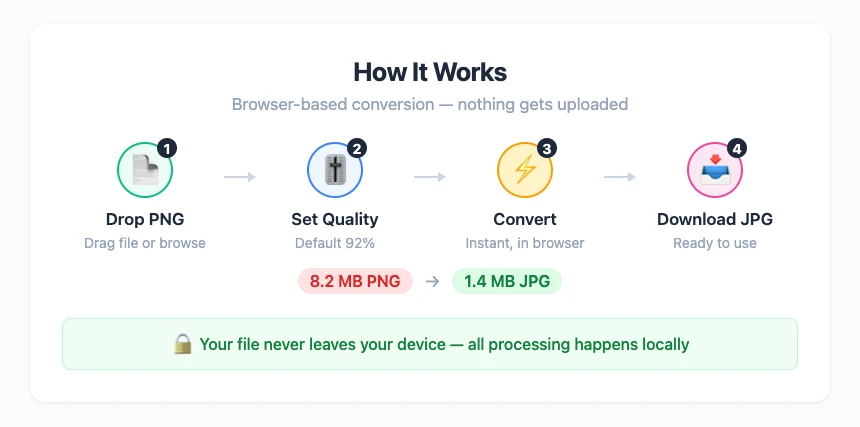
The fastest option for quick conversions. The file stays on your device.
Using poster.sh's PNG to JPG converter:
- Open the tool — go to poster.sh/tools/png-to-jpg
- Drop your PNG — drag the file in, or click to browse
- Set the quality — default is 92%, which preserves detail while reducing size. Lower it for smaller files, raise it for maximum quality
- Convert — click the button and download your JPG
The converter shows both file sizes so you can see exactly how much space you saved. If your PNG has a transparent background, it gets replaced with white — JPG can't do transparency.
Need to go the other direction? The image converter handles multiple format conversions from one tool.
Method 2: Built-In OS Tools
macOS Preview:
- Open the PNG in Preview
- File → Export
- Choose JPEG from the format menu
- Adjust quality slider and save
Windows Paint:
- Open the PNG in Paint
- File → Save as → JPEG picture
- Choose location and save
Good for one-off conversions. No install needed.
Method 3: Command Line (Batch)
For converting multiple files at once:
# ImageMagick — single file
magick input.png output.jpg

# ImageMagick — quality setting
magick input.png -quality 90 output.jpg

# Batch convert all PNGs in a folder
for f in *.png; do magick "$f" -quality 90 "${f%.png}.jpg"; done
Best for developers and content teams processing many files at once.
What Quality Setting Should You Use?
JPG quality is a percentage that controls how aggressively the compression algorithm discards data. Here's what the numbers mean in practice:
- 95-100% — Negligible quality loss. File size is only moderately smaller than PNG. Use this when quality is the top priority.
- 85-95% — The sweet spot for most uses. Differences from the original are invisible in normal viewing. The default 92% in poster.sh's converter lands here.
- 70-85% — Good enough for web thumbnails, social media, and any image viewed at small sizes. Noticeable softening in large-scale detail.
- Below 70% — Visible blockiness and color banding. Only useful when extreme file size reduction is required.
One important detail: these numbers aren't standardized across tools. "Quality 80" in one converter may look different from "quality 80" in another. The visual result matters more than the number.
Common Mistakes
Converting logos and icons to JPG
JPG compression creates visible artifacts around sharp edges — halos, color bleeding, and blurred text. A logo saved as JPG at any quality will look worse than the PNG original. Keep logos and icons as PNG (or SVG).
Re-saving JPGs multiple times
Every time you open a JPG, edit it, and save it again, it loses quality. This is called generation loss. If you need to edit an image repeatedly, work in PNG and only export to JPG as the final step.
Not keeping the PNG original
Converting to JPG is a one-way process. You can't convert a JPG back to PNG and recover the lost data — you'll just get a PNG-wrapped JPG with the same artifacts and a larger file size. Always keep the original PNG if there's any chance you'll need the lossless version later.
Using PNG for photographs on the web
This is the opposite mistake. Serving a 6 MB PNG photograph on a website when a 600 KB JPG would look identical to visitors wastes bandwidth and hurts page speed. If the image is a photo and doesn't need transparency, JPG (or WebP) is the right format for the web.
Bottom Line
Convert PNG to JPG when the image is photographic and compatibility or file size matters more than perfect pixel fidelity. That remains the practical rule on April 14, 2026, but it fails when the image depends on transparency, crisp text edges, repeated editing, or a lossless archive you may need later.
Frequently Asked Questions
- Does converting PNG to JPG reduce quality?
- Yes. JPG is a lossy format, so some quality is always lost during conversion. At high quality settings (90%+), the loss is virtually invisible for photographs. For graphics with text or sharp edges, the artifacts are more noticeable — which is why those images should stay as PNG.
- Can I convert JPG back to PNG?
- You can change the file format, but you can't recover the data that JPG compression removed. The result is a PNG file with JPG artifacts — same visual quality as the JPG, but a larger file size. If you need a lossless version, you need the original source file.
- Why are my PNG files so large?
- PNG uses lossless compression, which preserves every pixel exactly. For photographs, this means the files are much larger than what lossy JPG would produce. A 24-megapixel photo from a modern camera might be 15-25 MB as PNG but only 3-5 MB as a high-quality JPG.
- Should I use PNG or JPG for my website?
- Use JPG for photographs and complex images. Use PNG for logos, icons, screenshots, and anything with transparency or sharp text. Better yet, use WebP — it's smaller than both and supports transparency. Most modern web workflows convert images to WebP automatically.
- What happens to transparent areas when I convert to JPG?
- Transparent pixels get replaced with a solid background color. Most converters fill them with white. If your image relies on transparency (like a logo that floats over different backgrounds), don't convert to JPG — use PNG or WebP instead.
Convert PNG to JPG in Seconds
Drop your PNG file into our free converter. Everything happens in your browser — no uploads, no software, no account required.
Open PNG to JPG Converter