HEIC to JPG: How to Convert iPhone Photos for Any Platform
Learn why iPhones save photos as HEIC and how to convert them to JPG. Covers browser-based conversion, platform compatibility, and when to keep HEIC.
Key Takeaways
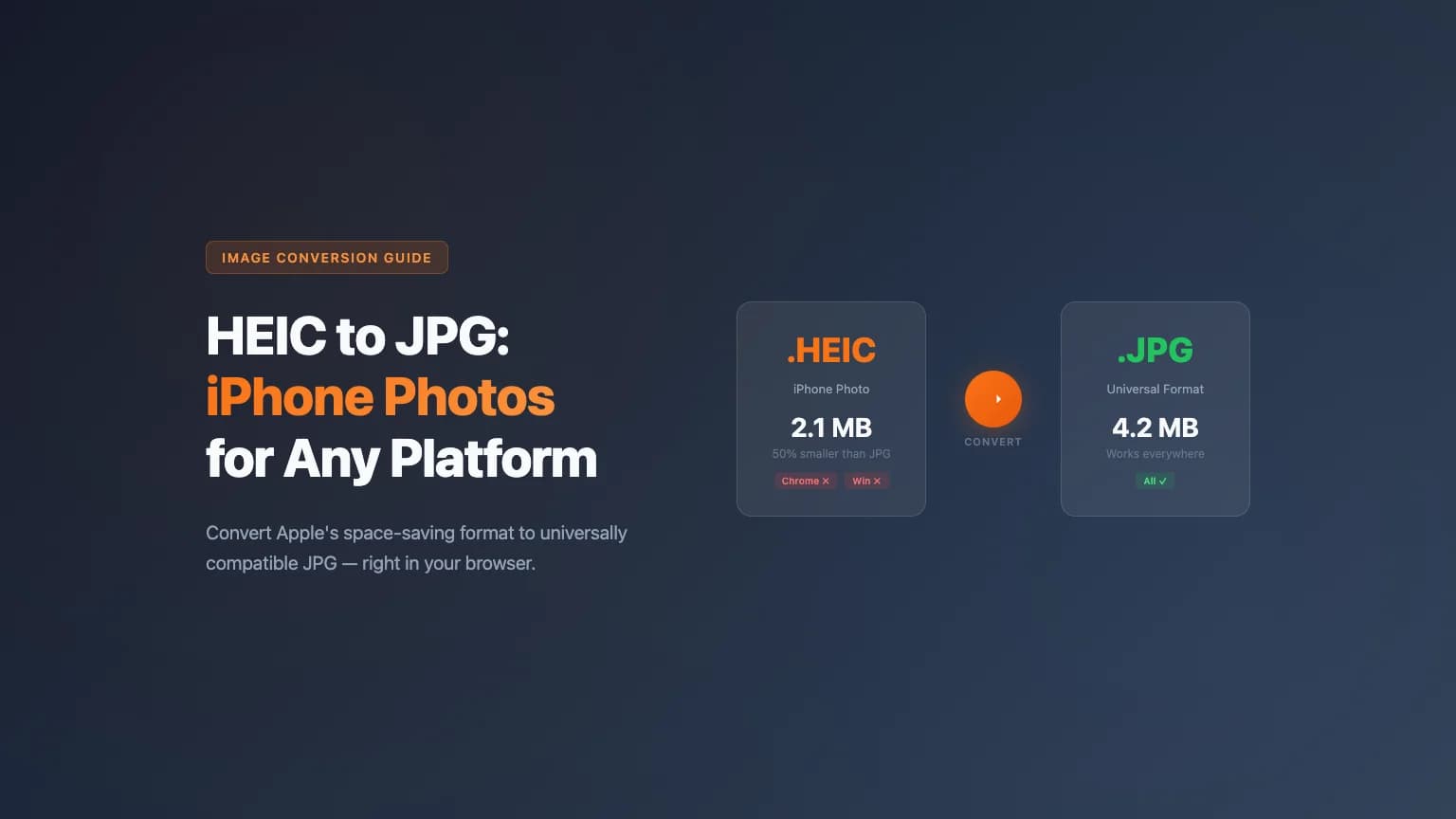
- •iPhones save photos as HEIC by default since iOS 11 (2017). HEIC files are roughly 50% smaller than JPG at the same visual quality.
- •Most web browsers, Windows PCs, and many web-based tools still can't open HEIC files directly.
- •Browser-based converters let you turn HEIC into JPG in seconds without uploading your photos to a server.
- •You can also change your iPhone's camera settings to shoot in JPG directly if you prefer universal compatibility over file size savings.
On This Page
Your iPhone takes great photos. Then you try to email one to a coworker on Windows, upload it to a web form, or open it in an older app — and nothing works. The culprit is HEIC, the image format Apple switched to back in 2017. It produces smaller files with better quality, but much of the world still expects JPG.
This guide explains what HEIC actually is, where it causes problems, and how to convert your photos to JPG quickly — without installing anything.
What Is HEIC and Why Does Your iPhone Use It?
HEIC stands for High Efficiency Image Container. It's Apple's name for HEIF (High Efficiency Image Format), a standard finalized by MPEG in 2015 and adopted by Apple in iOS 11, which shipped in September 2017.
Under the hood, HEIC uses the same compression technology as the H.265/HEVC video codec. That's what makes it so efficient: a typical iPhone photo saved as HEIC takes up about half the storage of the same photo saved as JPG, according to Adobe's format comparison. An independent test of 500 real-world images on GitHub found HEIC files averaged 49.8% of the size of their JPG equivalents at comparable quality.
Beyond compression, HEIC has a few technical advantages over JPG:
- 16-bit color depth per channel (vs. 8-bit for JPG), which means smoother gradients and more accurate colors
- Transparency support — JPG can't do transparent backgrounds at all
- Image sequences — a single HEIC file can contain multiple frames, which is how Live Photos work
- Non-destructive edits — iOS stores editing instructions inside the HEIC container without altering the original pixel data
So why does Apple use it? Storage. When you're taking thousands of photos on a phone with fixed storage, cutting file sizes in half is a significant win. Every iPhone from the iPhone 7 onward defaults to HEIC.
Where HEIC Breaks Down
The problem isn't the format — it's compatibility.
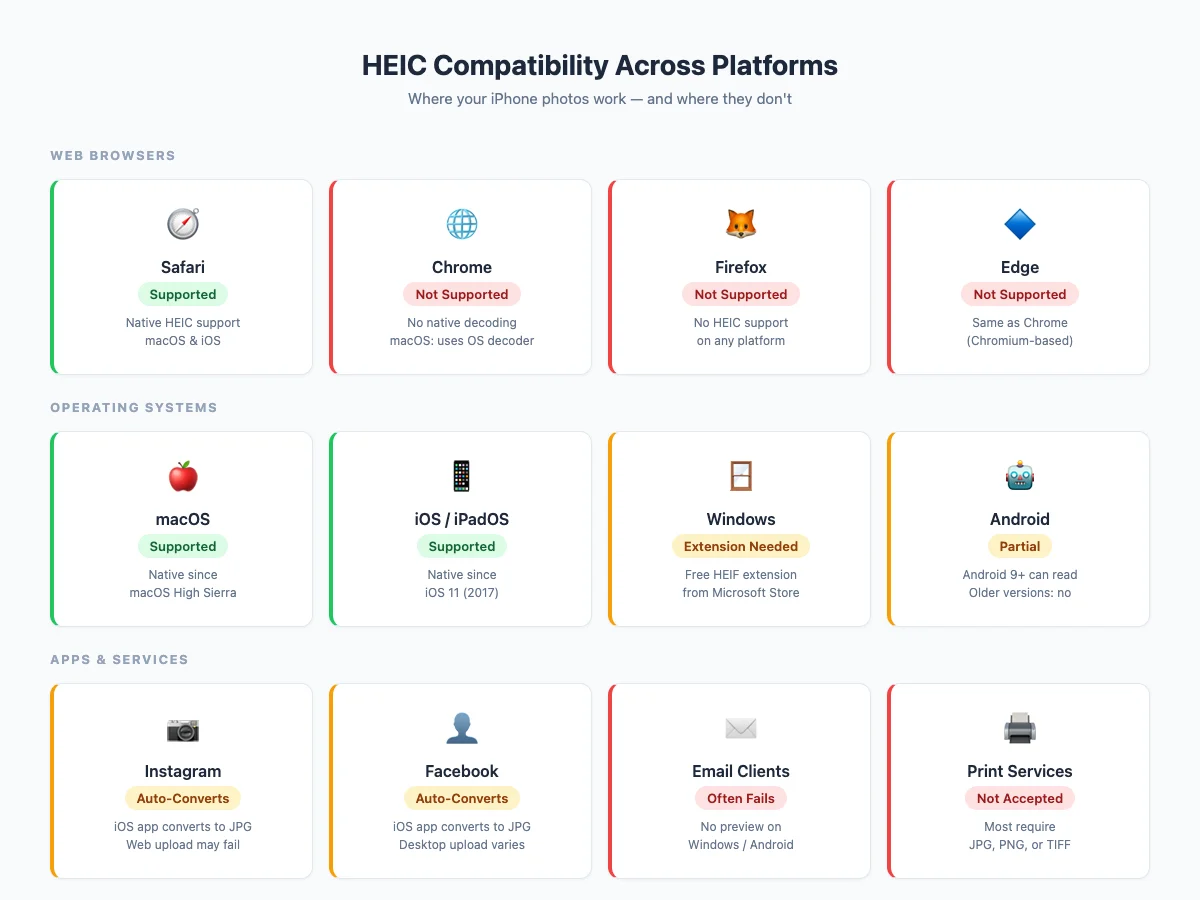
JPG has been universal since the mid-1990s. HEIC is not.
Web Browsers
As of March 2026, only Safari supports HEIC images natively. Chrome and Firefox do not display HEIC files — if you embed one on a web page, visitors using those browsers see nothing. Chrome on macOS is a partial exception: it can decode HEIC through the operating system's built-in decoder, but that doesn't help Chrome on Windows or Linux.
The licensing cost of the H.265/HEVC codec is a major reason. It's complex and expensive to license, which discourages browser vendors from building in native support.
Windows
Windows 10 and 11 don't open HEIC files out of the box. You need to install the free HEIF Image Extension from the Microsoft Store. Once installed, the Photos app and File Explorer handle HEIC just fine — but your coworkers and clients may not have it installed.
Social Media and Web Uploads
The situation with social media is inconsistent. When you share a photo from the iPhone Photos app to Instagram or Facebook, iOS automatically converts it to JPG behind the scenes. But if you're uploading HEIC files from a desktop browser — say, through a social media scheduling tool or a web-based uploader — the upload may fail silently or throw an error.
For reliable uploads across platforms, JPG remains the safe choice.
Most email clients handle image attachments by file extension and MIME type. Attach a .heic file and the recipient on Windows or Android may see a blank attachment or a generic file icon instead of a preview.
Other Scenarios Where You'll Want JPG
- Printing services (most accept JPG, PNG, or TIFF — not HEIC)
- Graphic design tools that don't support HEIC input
- Website CMS uploads
- Document attachments in Google Docs or Microsoft Office
- Sharing files with Android users on older devices
How to Convert HEIC to JPG
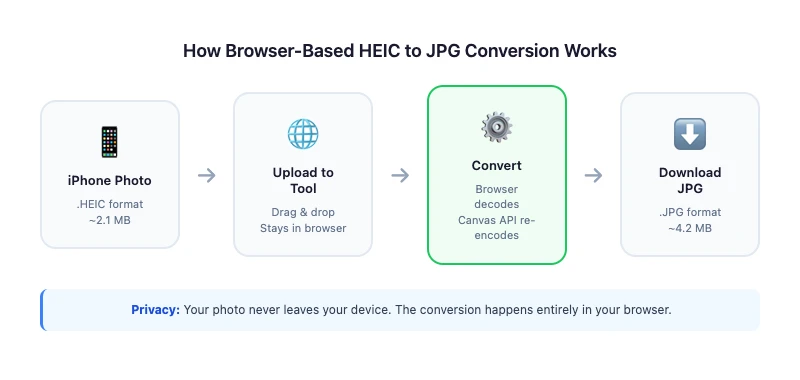
There are three practical approaches, depending on your situation.
Option 1: Use a Browser-Based Converter (Fastest)
A browser-based tool handles the conversion locally on your device — your photo never gets uploaded to a server.
Here's how it works with poster.sh's HEIC to JPG converter:
- Open the tool — go to poster.sh/tools/heic-to-jpg in any browser
- Drop your file — drag a
.heicor.heiffile into the upload area, or click to browse - Set your quality — use the slider to choose output quality (default is 92%, which keeps the image sharp while producing a reasonable file size)
- Click Convert — the tool processes the file right in your browser using JavaScript
- Download — save the converted JPG to your device
The converted file shows you both the original HEIC size and the new JPG size, along with the image dimensions, so you can see exactly what changed.
This approach works well for one-off conversions and small batches. Your files stay on your device throughout the entire process.
Option 2: Change the Transfer Setting on Your iPhone
iOS has a built-in option that automatically converts HEIC to JPG when you transfer photos to a PC or Mac:
- Open Settings > Photos
- Scroll to Transfer to Mac or PC
- Select Automatic
With "Automatic" selected, iOS converts HEIC photos to JPG when transferring them via USB or AirDrop to devices that don't support HEIC. If the receiving device supports HEIC, it sends the original file.
Option 3: Use the Image Converter for Batch Needs
If you regularly work with multiple image formats, poster.sh's general image converter supports converting between PNG, JPG, and WebP. While it doesn't accept HEIC input directly (due to the same browser-level limitations that affect Chrome and Firefox), it's useful for converting between formats after you've handled the HEIC-to-JPG step.
How to Stop Your iPhone from Saving HEIC
If you'd rather skip the conversion step entirely, you can switch your iPhone camera to save photos as JPG by default:
- Open Settings > Camera > Formats
- Select Most Compatible
This tells the camera to save photos as JPG (and videos as H.264) instead of HEIC (and HEVC). The trade-off is real: your photos will take up roughly twice as much storage space. If you have plenty of iCloud or device storage, it's a reasonable convenience trade. If you're running low, keep HEIC and convert when you need to.
HEIC vs JPG: When Each Format Makes Sense
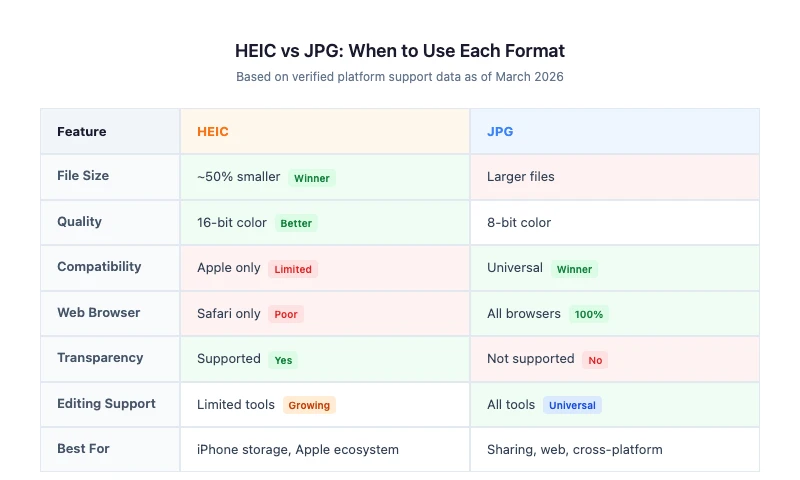
Neither format is better in every situation. Here's a practical breakdown:
| Scenario | Better format | Why |
|---|---|---|
| Storing photos on your iPhone | HEIC | Half the file size, better color depth, keeps Live Photo data |
| Sharing via email or Slack | JPG | Universal compatibility, no conversion friction |
| Uploading to a website or CMS | JPG | Browsers and upload forms expect it |
| Social media from desktop | JPG | Avoids silent upload failures |
| Printing | JPG or PNG | Print services universally accept these |
| Archival or editing master copies | HEIC | Preserves more data, supports non-destructive edits |
| Sending to Windows users | JPG | Avoids "can't open this file" replies |
The practical rule: keep HEIC on your phone for storage efficiency, and convert to JPG when the file needs to leave the Apple ecosystem.
Bottom Line
As of April 14, 2026, HEIC is the better storage format inside an Apple-first workflow and JPG is still the safer format once the file has to move across apps, uploads, or shared devices. The advice breaks when you need HEIC-only data such as Live Photo behavior, depth information, or nondestructive edits, so keep the original before converting anything you may need to revisit.
Frequently Asked Questions
- Is HEIC the same as HEIF?
- HEIC is Apple's specific implementation of the HEIF standard. HEIF (High Efficiency Image Format) is the broader container format defined by MPEG. Apple uses the `.heic` extension for still images compressed with the HEVC codec. You may also encounter `.heif` files, which use the same container but might use different codecs. For practical purposes, they're interchangeable in most conversion tools.
- Does converting HEIC to JPG lose quality?
- Yes, there's some quality loss because JPG is a lossy format. However, at quality settings of 85-92%, the difference is virtually invisible to the human eye. The original HEIC file on your phone remains unchanged — conversion creates a new file.
- Can I convert HEIC to JPG on Android?
- Android 9 (Pie) and later added HEIF support, so newer Android phones can open HEIC files. For conversion, you can use a browser-based tool like [poster.sh's HEIC to JPG converter](/tools/heic-to-jpg) from any Android browser — it works the same way as on desktop.
- Why are my iPhone photos HEIC instead of JPG?
- Apple made HEIC the default camera format starting with iOS 11 in 2017 because HEIC files are about 50% smaller than JPG files at the same quality. This saves significant storage space on your phone and in iCloud. You can change this in Settings > Camera > Formats by selecting "Most Compatible."
- Will email clients block HEIC attachments?
- Email clients won't typically block HEIC files, but recipients on Windows or older Android devices may not be able to preview or open them. The safest approach for email attachments is to convert to JPG first, which every device and email client can display.
Convert HEIC to JPG Instantly
Drop your iPhone photo into our free browser-based converter. No uploads, no installs — your file never leaves your device.
Open HEIC to JPG Converter