
How to Make a Poster with AI: A Step-by-Step Guide
A practical guide to creating posters with AI — from writing a prompt and choosing a style to generating options and preparing files for print or social media.

Key Takeaways
- •AI poster generators turn text descriptions into finished visuals. No design software or graphic design experience needed.
- •The quality of your output depends heavily on your prompt. Specific descriptions produce better posters than vague ones.
- •Most AI poster tools offer multiple style options — pick the style before you generate, not after.
- •After generating, you'll likely need to resize or compress the image for your target platform.
On This Page
Making a poster used to mean either hiring a designer or wrestling with templates in Canva. AI changes that. You describe what you want in plain language, choose a visual direction, and the system generates a finished poster you can download and use.
This guide walks through the full process — from writing your first prompt to exporting a file ready for Instagram, a print shop, or a slide deck.
What AI Poster Generation Actually Does
An AI poster generator takes a text prompt — a short description of what you want — and produces a visual image. Under the hood, it uses a trained image generation model to interpret your words and create a composition that matches.
The output is a complete visual: layout, typography, imagery, and color palette, all generated from your description. You don't drag elements around or choose fonts manually. The AI makes those decisions based on the prompt and style you select.
This is different from template-based tools like Canva or Adobe Express, where you start with a pre-made layout and swap elements. With AI generation, every poster is created from scratch based on your input.
What you can expect
- A finished poster image, typically in PNG or WebP format
- Multiple visual directions from the same prompt (most tools generate several options)
- Style-specific output (minimalist, retro, cyberpunk, bold typography, etc.)
- Results in seconds rather than hours
What you shouldn't expect
- Pixel-perfect control over every element on day one
- Exact text placement (AI-generated text in images can be inconsistent)
- Print-ready files without any post-processing (you'll usually need to check sizing)
Step 1: Define What the Poster Is For
Before you type a prompt, answer three questions:
Who is this for? A movie night poster for friends needs a different tone than a conference banner for professionals.
Where will it appear? Instagram (1080×1080 or 1080×1350), a physical wall (A2 or 24×36 inches), a presentation slide (16:9), or an email header — each has different size requirements.
What's the core message? "Summer sale starts June 1" is a clear message. "Our company is great" is not. The tighter your message, the better the AI can focus the visual.
Write these down. They'll shape everything that follows.
Step 2: Write a Good Prompt
The prompt is the most important part of the process. Here's what works.
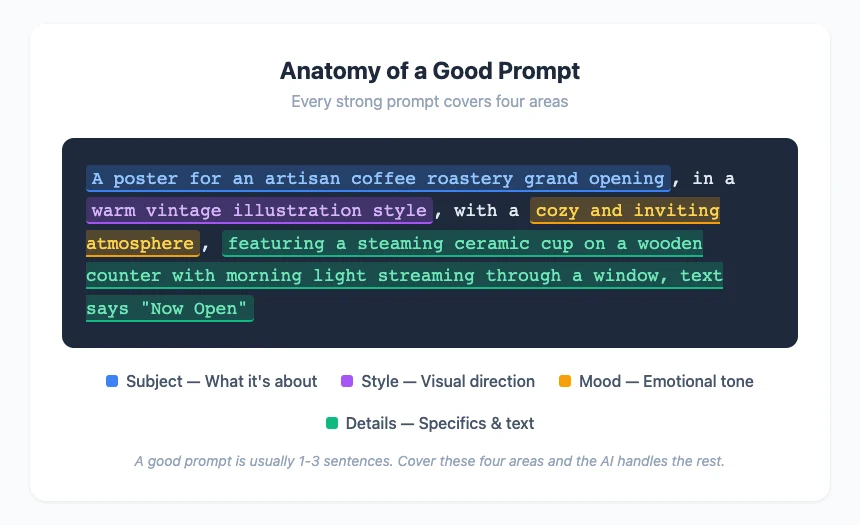
Be specific about the subject
❌ Vague:  "Make a poster for a coffee shop"
✅ Better: "A warm-toned poster for an artisan coffee roastery grand opening,
           featuring a steaming ceramic cup on a wooden counter with
           morning light, text says 'Now Open'"
Include the visual style
If you know what you want, say it. Styles like "minimalist," "retro," "art deco," "bold typography," or "watercolor" give the AI a clear aesthetic direction.
poster.sh offers over a hundred distinct visual styles — browsing them before you write your prompt helps you lock in a direction rather than hoping the AI guesses right.
Mention the mood
Words like "energetic," "calm," "elegant," "playful," or "dramatic" shift the color palette and composition. A poster described as "energetic" will get brighter colors and more dynamic angles than one described as "calm."
Specify what to avoid
Some AI systems support negative prompts. Even when they don't, you can steer the output by being explicit: "no people in the image" or "no text overlay — I'll add text myself."
Step 3: Choose a Style and Generate
With your prompt ready, the generation step is straightforward.
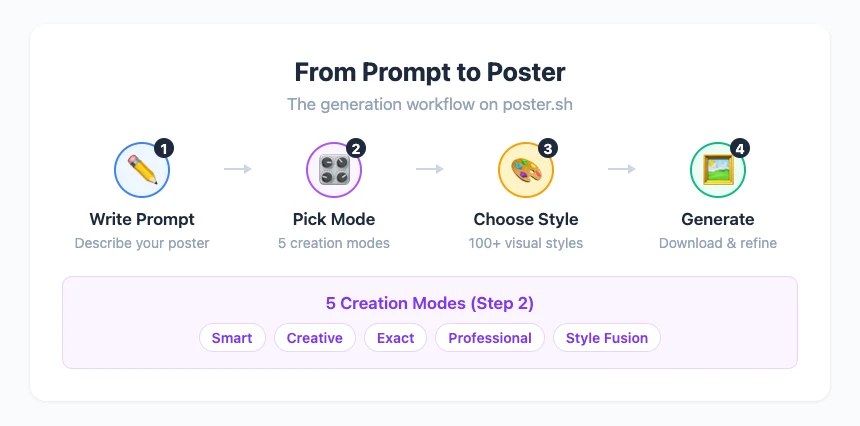
On poster.sh, the workflow looks like this:
- Enter your prompt in the generator on the homepage
- Select a creation mode — poster.sh offers five:
- Smart generation — the system expands your short idea into a stronger prompt
- Creative generation — explores broader visual interpretations for more variety
- Exact generation — follows your prompt closely when you already know what you want
- Professional generation — produces output closer to polished campaign assets
- Style fusion — blends multiple visual directions when one style isn't enough
- Pick a visual style from the style gallery — this is the single biggest lever for controlling the look and feel
- Generate — the system produces your poster
Try generating the same prompt with two or three different styles. The visual difference between a "minimalist" and a "retro" version of the same concept is often dramatic, and comparing them helps you identify what actually works for your use case.
Step 4: Evaluate and Iterate
Your first generation probably won't be the final one. That's normal — even professional designers iterate.
What to look for
- Composition — Does the layout guide the eye where you want it? Is there a clear focal point?
- Readability — If there's text in the image, is it legible? AI-generated text can sometimes be garbled — this is a known limitation.
- Color harmony — Do the colors support the mood you wanted? Do they work on the background you plan to use?
- Style consistency — Does the poster feel cohesive, or does it mix elements that don't belong together?
How to iterate
- Adjust the prompt — Add or remove details. If the output is too busy, simplify. If it's too generic, add specifics.
- Try a different mode — Switch from Creative to Exact, or from Smart to Professional. Different modes interpret the same prompt differently.
- Change the style — Sometimes the prompt is fine but the style doesn't match the use case.
Two to four rounds of generation usually gets you to a poster you're happy with.
Step 5: Prepare the File for Use
A generated poster is an image file, but it may not be in the right format or size for your target platform. Here's how to handle common scenarios.
For social media
Social platforms have specific size requirements. Instagram posts work best at 1080×1080 (square) or 1080×1350 (portrait). Stories and Reels need 1080×1920.
Use the resize for Instagram tool to fit your poster to the exact dimensions. The tool handles cropping and scaling without requiring any design software.
For print
Print posters need higher resolution than screen posters. A good rule of thumb: 300 DPI (dots per inch) at the final print size. For a 24×36 inch poster, that means a source image of 7200×10800 pixels.
Most AI generators produce images in the 1024–2048 pixel range, which works for small prints and digital use. For large-format prints, you may need to upscale the image or work with a print service that handles AI-generated art.
Standard print poster sizes:
- A3 (11.7 × 16.5 in / 297 × 420 mm) — small posters, desk displays
- A2 (16.5 × 23.4 in / 420 × 594 mm) — standard wall poster
- 18 × 24 in — common US poster size
- 24 × 36 in — large format, retail displays
For presentations and email
Resize to 16:9 for slides or crop to a horizontal banner format for email headers. File size matters here — compress the image to keep the file under typical email limits. poster.sh's image tools include a compressor that reduces file size without visible quality loss.
Format conversion
Your poster may download as PNG or WebP. If you need JPG for compatibility, use the image converter. If you're coming from a WebP download and need JPG, the WebP to JPG converter handles it in your browser.
Tips for Better Results
Start with a strong reference
Before you write a prompt, look at posters you admire. What makes them work? Is it the typography, the color palette, the composition, the use of negative space? Translate those observations into your prompt.
Use category context
Different poster categories have different visual conventions. A movie poster typically uses dramatic lighting and a centered subject. A concert poster often uses bold typography and limited colors. An event poster for a corporate conference needs clean lines and restrained colors.
poster.sh organizes posters by category — business, creative, education, entertainment, events, social media — and each category carries different style expectations. Knowing your category helps you choose the right style and prompt direction.
Don't over-prompt
Longer prompts aren't always better. If you specify every detail ("blue background with exactly three stars in the upper-left corner at 45-degree angles"), you're fighting the model's strengths. Give it the concept and mood, then let the AI handle composition.
A good prompt is usually 1-3 sentences. Save the detailed specifications for tools you control directly (resize, crop, compress).
Keep the original file
Always save the full-resolution output before you resize, compress, or convert. You may need a different version later — a cropped Instagram version today, a full-size print version next week.
Frequently Asked Questions
- Do I need design experience to use an AI poster maker?
- No. The AI handles layout, color, and composition. You provide the concept and style direction through your prompt. Design experience helps you write better prompts and evaluate output more critically, but it's not required to get a usable result.
- How long does it take to make a poster with AI?
- Generation itself takes seconds. The full process — writing a prompt, generating a few options, picking the best one, and preparing the file — typically takes 5-15 minutes. Compare that to hours or days with traditional design software.
- Can I use AI-generated posters commercially?
- This depends on the specific tool's terms of service. Many AI generators (including poster.sh) allow commercial use of generated images. Check the terms before using output in paid campaigns, merchandise, or client deliverables.
- What if the AI-generated text on the poster is wrong?
- AI-generated text in images is a known weak point across all current models. Letters can be misspelled, duplicated, or garbled. For critical text (event dates, brand names, prices), plan to add text manually in a basic editor after generating the base poster image, or verify text accuracy carefully before using the output.
- What's the best image size for an AI poster?
- It depends on where the poster will be used. For social media, 1080×1080 or 1080×1350 pixels. For web use, anything above 1200px wide is sufficient. For print, aim for 300 DPI at the final size — which usually means several thousand pixels per side.
Make Your First AI Poster
Describe what you need, pick a style, and generate a poster in seconds. No design skills required.
Open the Poster Generator

